Table of Contents
Emacs in the CRAM environment
Using Emacs with CRAM is not all too different from using Emacs in any other LISP programming context. Here are some basic techniques to make your life easier when working with it.
Definitions
An Emacs buffer is the equivalent of window / tab in other editors. It can have a file associated with it that you can (or cannot depending on the privileges) edit, or it can be running a process (e.g. when you open the shell: M-x shell). The minibuffer is usually a one-line part of the screen at the bottom of the Emacs window.
The cursor in Emacs is called the point. Dired is the directory explorer mode of Emacs. When in the following we talk about “closing” a buffer it's not generally meant as really clsoing it, but only the window for it. The buffer is then still active in the background and can be switched to. To really close a buffer you need to “kill” it.
Window Overview
When first opening Emacs you will be welcomed by this screen:
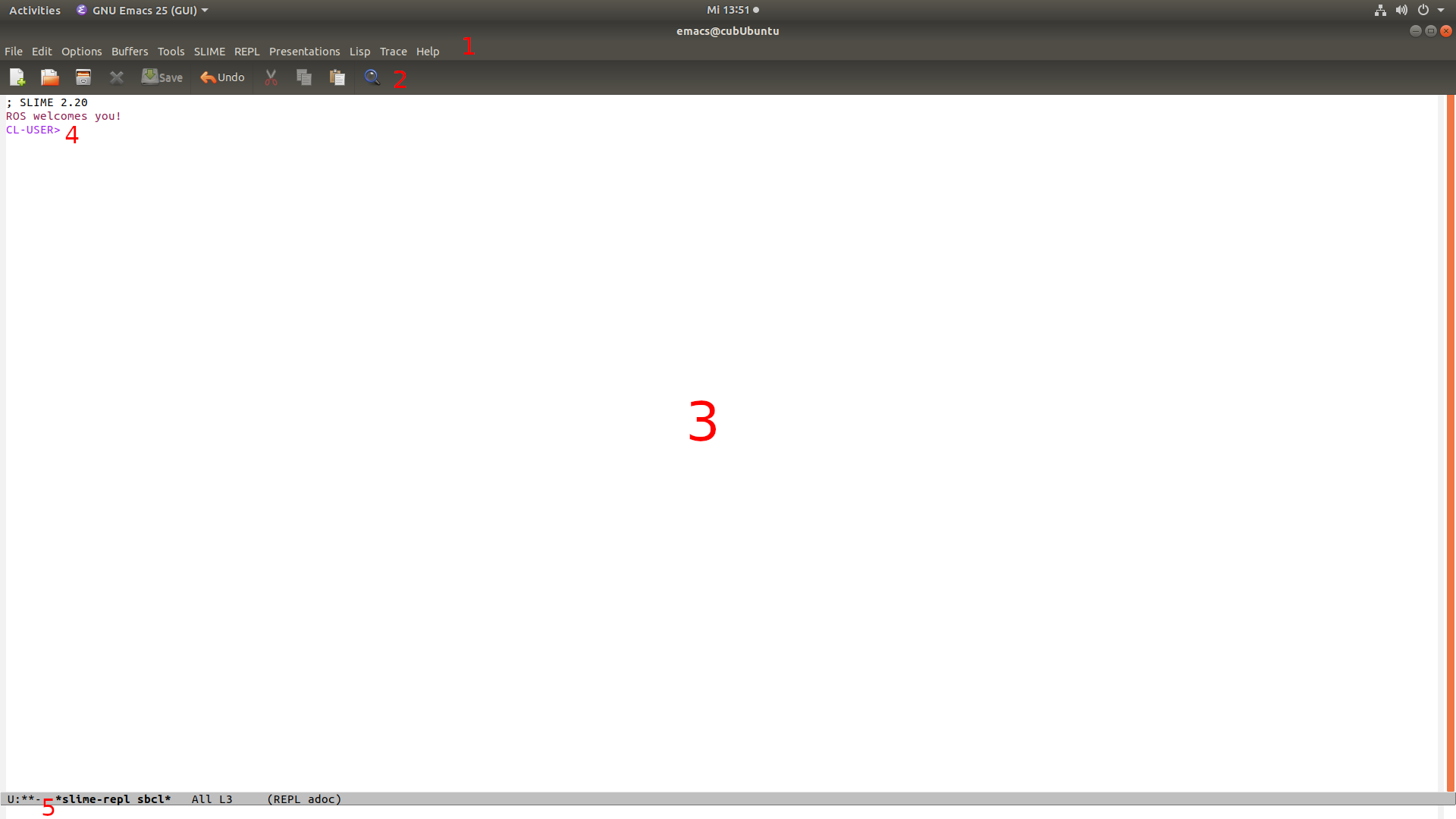
There are the two tool bars (markers 1 and 2), but we will not be using them much. You can explore them if you want, but everything in them can be done with key bindings as well.
The main window currently occupies most of the screen (3). At the top of this window there's the prompt and cursor (4). The prompt (CL-USER>) also indicates, that the window's current buffer is the REPL. This can also be seen in the bottom bar just below the window (grey bar at marker 5). There it says “slime-repl sbcl”, which is the current buffer's name.
Just below the window there is another white bar. This is the so-called “mini-buffer”, where you can type in commands for various purposes.
Key Bindings
Textual representation of Emacs key bindings has a number of conventions:
Short way of writing Ctrl, Alt and Shift is: C, M and S respectively.
RET stands for the Enter or Return key
TAB stands for the Tabulator key
If a key is supposed to be pressed together with another key, they're connected with a dash, e.g. C-h
C-h b means first press Ctrl and h together and then b separately (in contrast to C-h C-b)
Commands like M-x shell mean: press Alt and x together and then type shell into the minibuffer on the bottom of the screen.
Now some of the most important commands:
Going back in history (when in the REPL buffer):
- C-Up: Step through previously executed commands in the REPL buffer
- C-Down: Step back forward thorugh the previously executed commands
- M-R: regex-search in the previously executed commands (can step through with C-Up and C-Down)
Handling multiple windows:
- C-x 2: Splits the currently selected window horizontally
- C-x 3: Splits the currently selected window vertically
- C-x 0: Closes the currently selected window (the other window in the split is scaled back to it's full size)
- C-x 1: Close any window other than the currently selected
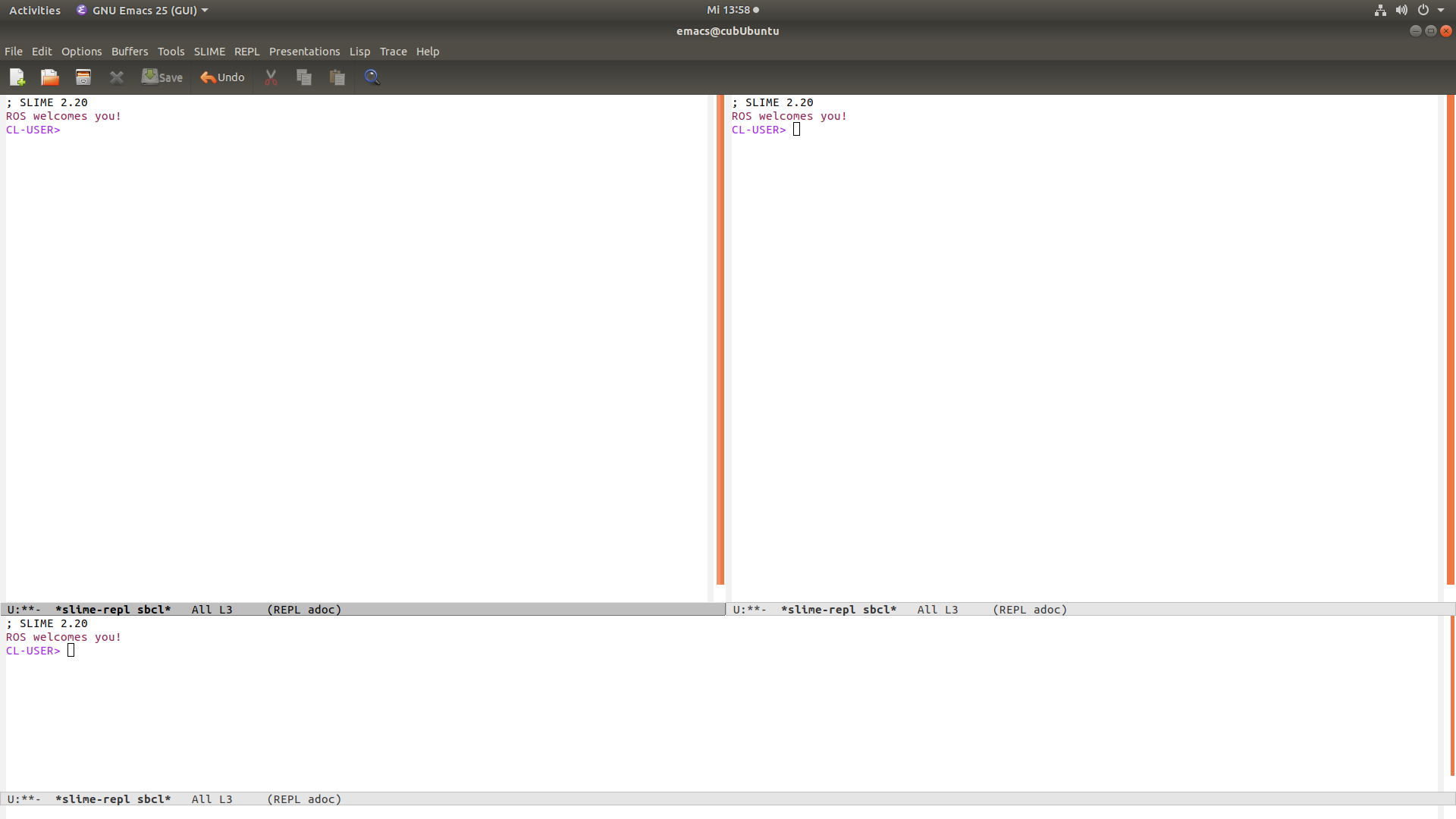
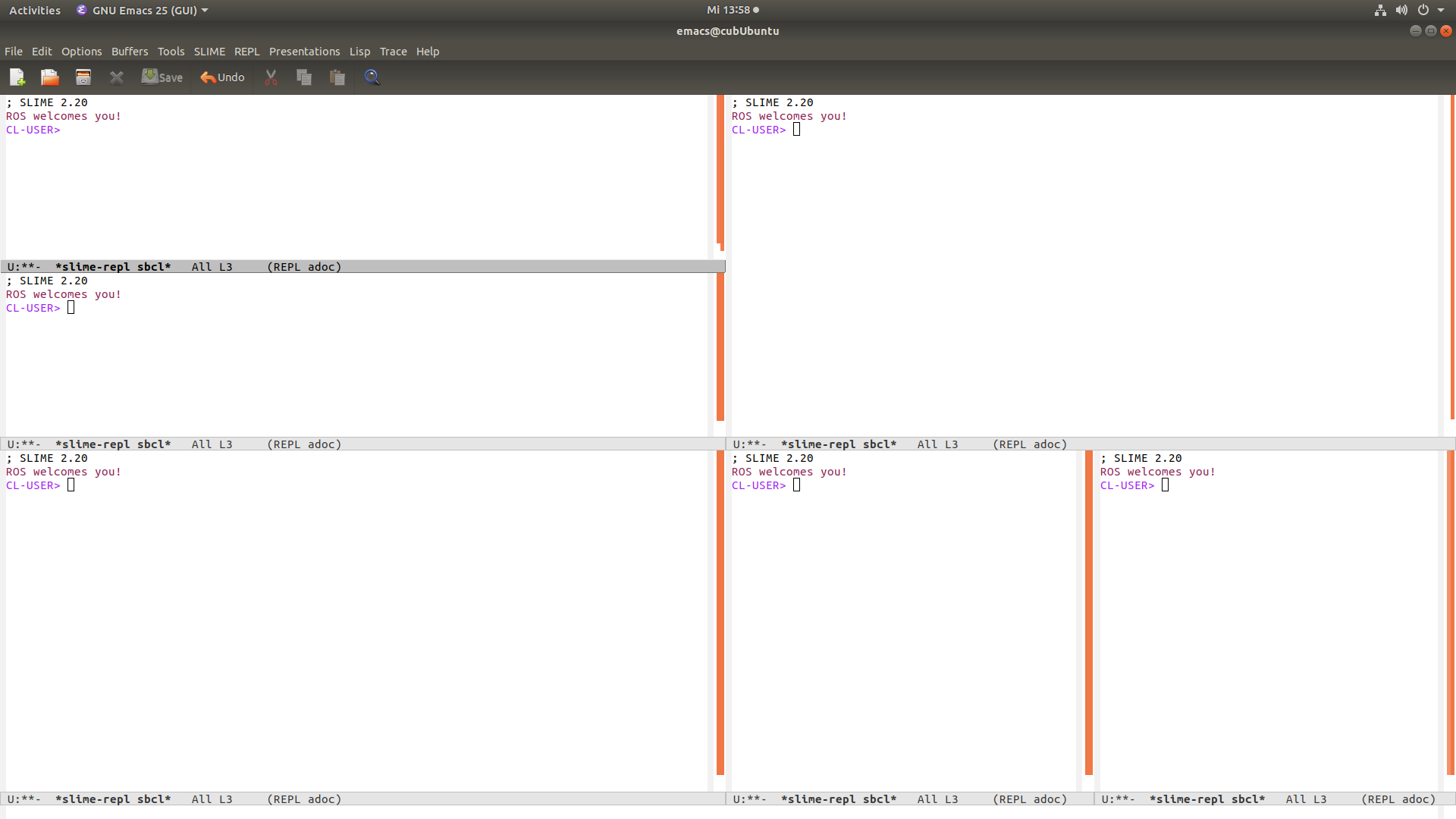
Example configurations
Through this feature you can arrange windows arbitrarily in any way you want:
Opening files, switching and killing buffers:
- C-x f: Open a new buffer with the contents of a file (specified by its path)
- C-x b: Change the buffer of the current frame (specified by its name, in most cases that's the filename)
- C-x k: Kill the currently active buffer. (Emacs will ask you if you want to save any changes beforehand.)
Note: When changing buffers, you can use C-Up and C-Down to step through the currently open buffers.
Lisp/(Slime)-specific (while in a .lisp file buffer):
- M-. (M-,): Jump in (out) of function definition
- C-c M-p: set the package from the selected lisp file as the package in the REPL
- C-c C-c: Compile the code block at the point (usually a function)
- C-c C-k: Compile the whole file (Emacs will ask you to save if there are unsaved changes)
In REPL:
- C-RET: close all unmatched parenthesis and evaluate
- C-c C-c: interrupt evaluation
- M-r (M-s): Regexp search backwards (forward) through history
- , : Opens mini-buffer to use shortcuts (see ,help), one important example is ,ros-load-system to load ROS package LISP systems.
In mini-buffer:
- C-g: cancel current command input
The following commands all need to be written out and executed by hitting the Return key. Except for TAB, which means hititng the tabulator key for auto-completion.
- ros-load-system: Then enter the ROS package, hit Return, enter the LISP system, hit return.
Example:
Press , on an empty prompt in the REPL to start a command in the mini-buffer.

Enter r-l-s TAB so it tab-completes to ros-load-system.


Enter cram-mobile-pick-place-plans for the ROS package (note the udnerscores). (You can use tab-completion here as well.)

Enter cram-mobile-pick-place-plans for the LISP system (note the dashes). You have also just pressed TAB to choose the default system (as indicated in the prompt text).

After entering the system, Emacs will load the package and after it has completed loading, it will say so in the mini-buffer as well.
General Tips
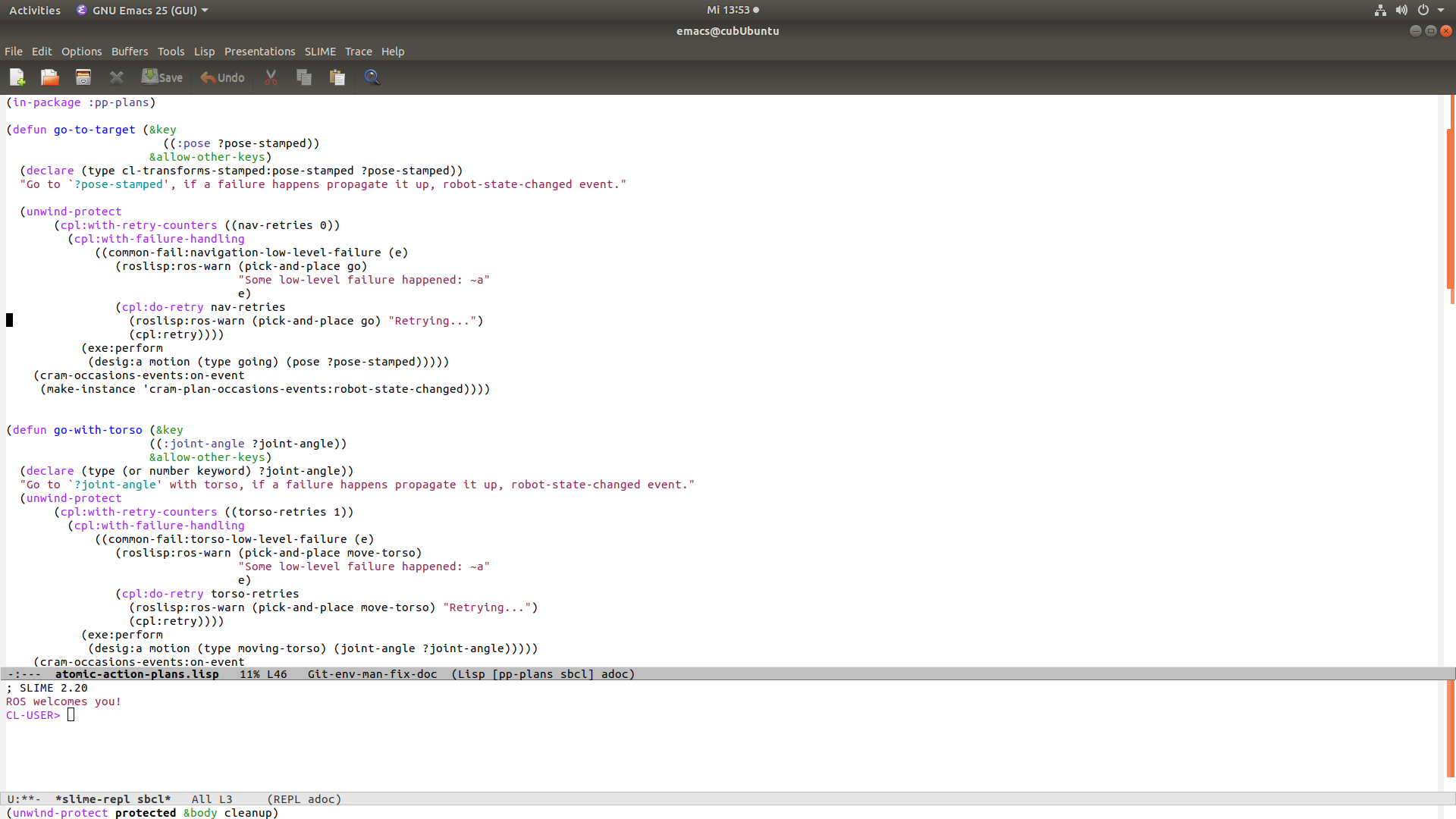
When starting out with using Emacs, it can be useful to have a fixed window configuration to not get overwhelmed with having to constantly open and close new buffer windows. When opening Emacs, use the C-x 2 command to split the window in two and just leave the bottom one as the REPL and use the top one for viewing files (C-x f and C-x b). Like so:
Further Reading
There is a much more in-depth overview of Emacs (and everything else surrounding CRAM) here: http://cram-system.org/doc/ide
For an example of how to setup the Emacs initilization file with very useful extensions and such, take a look at: http://cram-system.org/doc/emacs-config